
Related Fairoaks resources: Cloud computing services | Managed IT services | Construction company IT support
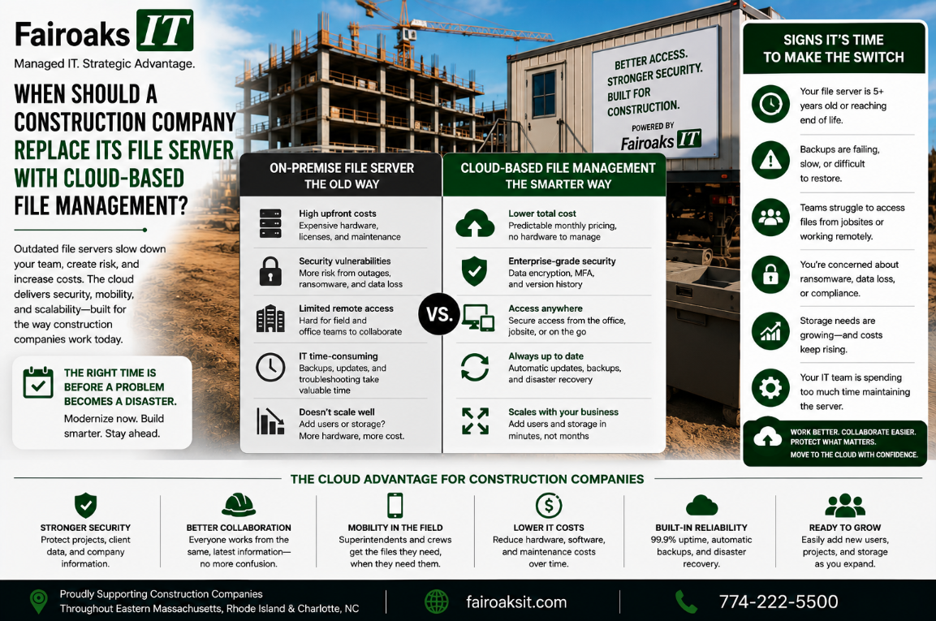
A construction company should consider replacing—or reducing its dependence on—an office file server when employees regularly struggle with remote access, large project files, version conflicts, unreliable VPN workflows, aging server hardware, or sharing information between the office and jobsites.
But moving everything to the cloud simply because “cloud is better” isn't a sound strategy.
Construction companies work with different types of information. Procore may handle project management, Bluebeam may support drawing workflows, Autodesk Construction Cloud may handle CAD/BIM workloads, SharePoint may be appropriate for company files, and Teams may support communication. Some specialized applications may still require other architectures.
The better decision framework is:
Workload → Users → Performance → Security → Platform
The goal isn't to eliminate the server.
The goal is to put each workload where it works best.
- Start With the Workload, Not the Server
When an office file server becomes frustrating, it's tempting to ask:
“Should we move all our files to the cloud?”
Start with a different question:
“What information do we have, and how do our employees actually use it?”
A commercial construction company might have several different workloads:
| Function | Typical Platform |
| Project Management | Procore |
| Drawings | Bluebeam |
| CAD/BIM | Autodesk Construction Cloud |
| Company Files | SharePoint |
| Communication | Microsoft Teams |
A contractor may also rely on specialized applications such as:
- Sage/Timberline
- AutoCAD
- On-Screen Takeoff
- ConEst/IntelliBid
- Bid2Win
- Trimble
- Other construction-specific systems
Those workloads don't necessarily belong in one place.
That's why Fairoaks recommends evaluating them individually.
Use:
Workload → Requirements → Appropriate Platform
Instead of asking whether “the server” should move to “the cloud,” determine which information and applications still benefit from the current architecture and which would work better somewhere else.
- Look for Signs the File Server Is Becoming a Field-Access Bottleneck
An office file server can work perfectly well for people sitting inside the office.
The problem may become obvious when employees leave the building.
A superintendent at a temporary jobsite might need to:
- Retrieve a large drawing
- Access project documentation
- Review a company file
- Upload information
- Collaborate with the office
- Share appropriate information with other project participants
If the workflow requires:
Jobsite → Internet → VPN → Office → File Server → File
the experience depends on every part of that chain.
The jobsite connection has to work.
The VPN has to work.
The office internet has to work.
The server has to work.
And the file still has to transfer acceptably across the connection.
If employees regularly complain about slow access or develop their own workarounds, that's a sign the architecture deserves review.
Watch for:
- Employees emailing files to themselves
- Duplicate Dropbox folders
- Files saved locally “just in case”
- USB drives
- Multiple versions of the same drawing
- Complaints about VPN performance
- Remote Desktop being used primarily to reach files
- Employees asking coworkers at the office to send them documents
Those behaviors may be symptoms of an access problem.
- Determine Whether Large Files Require a Different Architecture
Construction companies work with large files.
That can make architecture decisions more complicated than simply moving a collection of Word and Excel documents.
Drawings, CAD/BIM files, photos, and other project information may have significant performance requirements.
Before migrating a workload, ask:
- How large are the files?
- Which applications use them?
- How do those applications expect the files to be stored?
- How many people work with them simultaneously?
- Where are those employees located?
- How much internet bandwidth is available at those locations?
- What happens if connectivity is interrupted?
Don't assume a general-purpose cloud file repository is automatically the correct destination for every construction file.
The correct architecture might involve a specialized construction platform.
It might involve SharePoint.
It might involve maintaining part of an existing server environment.
It might involve a combination.
The principle is:
Match the platform to the workload.
- Consider Version Control and the Source of Truth
File servers often become complicated over time.
Employees create folders.
Then subfolders.
Then copies.
Then someone makes a folder called:
CURRENT
Eventually there's:
CURRENT-NEW
and perhaps:
CURRENT-FINAL
That's not really version control.
It's a warning sign.
Construction companies need to know where the authoritative project information lives.
This is particularly important for drawings.
If a superintendent can find five copies of a drawing but can't confidently identify the current one, access alone hasn't solved the problem.
Use this framework:
Store → Control → Sync → Access → Verify
Store
Define where the authoritative information belongs.
Control
Determine who can access or modify it.
Sync
Keep information current through an established workflow.
Access
Make it practical for office and field personnel to retrieve it.
Verify
Make sure employees can determine they're working with the correct version.
A migration is an opportunity to improve that process.
Don't simply reproduce a poorly organized server in a new location.
- Evaluate How Much the Company Depends on VPN and Remote Desktop
VPN and Remote Desktop can have legitimate uses.
Fairoaks' construction experience includes both RDP and VPN for remote workers.
But those technologies shouldn't automatically become the answer to every remote-access requirement.
Ask why employees are using them.
If the answer is:
“Because the application needs to operate that way,”
there may be a legitimate technical reason.
If the answer is:
“Because that's the only way employees can reach the files on our old server,”
it's worth evaluating alternatives.
A useful rule is:
Workload first → Access method second.
Don't begin with:
“We need a better VPN.”
Begin with:
“What is the employee trying to accomplish?”
Sometimes the answer will still be VPN or RDP.
Sometimes it won't.
- Consider the Age and Supportability of the Existing Server
Access isn't the only reason to reconsider a file server.
The underlying technology matters too.
Ask:
- How old is the server?
- Is the hardware still appropriately supported?
- Is the operating system supported?
- Is there adequate storage?
- Is performance still acceptable?
- Is the configuration documented?
- How is the system backed up?
- How would it be recovered after a failure?
- Who supports it?
- What applications depend on it?
An old server doesn't automatically need to be replaced by a cloud platform.
But if the company is facing a significant server replacement anyway, that's a logical time to evaluate whether every existing workload should return to another physical server.
Instead of:
Old Server → New Server
consider:
Old Environment → Workload Review → Best Destination for Each Workload
That creates an opportunity to modernize intentionally rather than simply recreate the past on newer hardware.
- Compare Security and Permissions
File migrations are also an opportunity to examine who has access to what.
Over time, file-server permissions can become complicated.
Employees change roles.
People leave.
Departments change.
Temporary access becomes permanent.
Folders inherit permissions nobody remembers assigning.
Before moving information, ask:
Who actually needs access?
Think in terms of:
Person → Role → Information → Permission
For every important repository:
- Who should be able to view it?
- Who should be able to edit it?
- Who can share it externally?
- Who administers access?
- How is access removed when someone leaves?
- How are outside parties handled?
Don't migrate unnecessary access simply because it exists today.
A migration can be an opportunity to clean up the permission model.
- Don't Forget About Jobsite Internet
Cloud-based file management changes where the dependency lives.
With an office file server, remote employees depend on connectivity back to the office.
With a cloud platform, they depend on reliable internet connectivity to the cloud service.
Either way:
Connectivity matters.
That's particularly important for construction companies operating temporary jobsites.
Fairoaks evaluates jobsite connectivity based on:
Throughput → Reliability → Cost
We've worked with conventional Comcast and Verizon service, cellular and wireless options, Starlink, temporary installations, neighboring facilities, and solar-powered wireless equipment where site conditions required a different approach.
Moving information to a cloud platform won't magically fix an unreliable jobsite connection.
The architecture has to be considered end to end:
Application + Files + Device + Jobsite Network + Internet Connection
All five affect the employee experience.
- Consider a Hybrid Approach
The choice isn't necessarily:
Server OR Cloud
Many contractors may have legitimate reasons to use both.
A company could use cloud platforms for some workloads while retaining another architecture for specialized systems.
For example:
Project Management → Procore
Drawings → Bluebeam
CAD/BIM → Autodesk Construction Cloud
Company Files → SharePoint
Communication → Teams
Specialized Application → Architecture appropriate to that application
The exact design depends on the contractor.
That's why “move everything to the cloud” isn't a particularly useful recommendation.
A better strategy is:
Right Workload → Right Platform → Right Access Method
- Plan the Migration Before Moving Anything
Once you've decided that a workload should move, resist the temptation to drag everything from Point A to Point B immediately.
First determine:
- What should move
- What shouldn't move
- What can be archived
- What duplicates exist
- What permissions are required
- What folder structure or information architecture should change
- How employees will access the new system
- How employees will be trained
- How the old location will be handled
- How you'll prevent people from continuing to use both systems indefinitely
The last point matters.
If the old server remains available and employees continue saving files there while other employees use the new platform, you've created two sources of truth.
A migration needs a defined transition.
Use:
Assess → Clean → Configure → Migrate → Verify
Assess
Understand the existing information and workloads.
Clean
Remove unnecessary duplication and identify information that shouldn't move.
Configure
Establish the destination, permissions, and workflow.
Migrate
Move the approved information.
Verify
Confirm that employees can access what they need and know where the authoritative information now lives.
Real-World Example: Why Infrastructure and Access Need to Work Together
Fairoaks recently took responsibility for IT support for a 40-person construction company operating multiple projects throughout Eastern Massachusetts and Rhode Island.
The contractor was experiencing problems communicating reliably with its jobsite trailers.
Employees couldn't consistently upload daily reports and jobsite photos.
Keeping field personnel supplied with the latest drawings was also challenging.
When Fairoaks investigated, we found inconsistent jobsite technology.
Different trailers had different equipment and configurations.
Documentation was lacking.
Some locations weren't using the most suitable available internet service.
Fairoaks worked with the contractor to develop and document a standardized jobsite technology approach tailored to the company's operations.
The standard was then deployed consistently.
The contractor experienced a 75% reduction in jobsite communication issues.
This wasn't specifically a file-server-to-cloud migration, so we shouldn't present it as one.
But it illustrates an important lesson for any cloud project:
Changing where files live doesn't solve every access problem.
The complete environment—including connectivity, networking, applications, configuration, and support—has to work together.
12 Signs It's Time to Reevaluate Your Construction File Server
Your company should consider reviewing its current architecture if:
- Remote employees regularly complain about file access.
- Superintendents struggle to retrieve information from jobsites.
- Large files perform poorly over remote connections.
- Employees regularly email files to themselves or coworkers.
- Dropbox folders, USB drives, or other workarounds are common.
- Employees have trouble determining which version is current.
- VPN is being used primarily because all files remain at the office.
- Remote Desktop is required for workflows that may have better alternatives.
- The existing server is aging or approaching replacement.
- Server permissions have become difficult to understand or manage.
- The company has adopted cloud construction applications but its file strategy hasn't changed.
- Nobody has recently evaluated which workloads still belong on the server.
One or two of these doesn't automatically mean:
“Replace the server.”
Several of them mean:
“It's time to evaluate the architecture.”
Should a Construction Company Move Its File Server to the Cloud?
Maybe.
That's a much better answer than automatically saying yes.
Start with:
Workload → Users → Performance → Security → Platform
Ask what information and applications the company has.
Determine who needs them and where those employees work.
Understand the performance requirements.
Evaluate security and permissions.
Then select the appropriate platform for each workload.
The result may be primarily cloud-based.
It may be hybrid.
Some specialized workloads may remain elsewhere.
The objective isn't to achieve a particular percentage of “cloud.”
The objective is to give employees reliable, secure access to the information and applications they need to do their jobs.
Fairoaks IT works with construction companies throughout Eastern Massachusetts and Rhode Island, including contractors with remote employees and multiple active jobsites.
Our construction experience includes remote access, large-file sharing, jobsite connectivity, and specialized applications such as Sage/Timberline, Bluebeam, AutoCAD, On-Screen Takeoff, ConEst/IntelliBid, Bid2Win, and Trimble. Our average IT ticket response time is 12 minutes, and our average problem resolution time is 1.9 hours.
For one 40-person contractor, standardizing the technology supporting multiple jobsites contributed to a 75% reduction in jobsite communication issues.
So don't begin a server-replacement conversation with:
“Should we move everything to the cloud?”
Begin with:
“Where should each workload live so our office and field teams can work securely and effectively?”
That's the question that leads to a better technology decision.